The Button That Would Not Move Right
2026-08-06 · 5 min read · [debugging] [css] [javascript] [web] [raspberry-pi]
I spent an evening trying to move a button to the right side of a banner, with the help of AI. Five separate CSS fixes, each one textbook-correct, and the button stayed stubbornly on the left. The cause was one line of JavaScript that had been disabling my entire layout the whole time.
There is something funny about that. An AI can generate astonishing videos out of thin air, write complex software, and keep an entire blog running, and yet moving one button to the right took an entire evening. The task seems so trivial that the failure reads like a joke. It is.
The 30-second version: the cookie banner on my blog has a dismiss button, “Understood, carry on”. The design calls for the text on top and the button below it, right-aligned. My AI assistant wrote the CSS three different ways, verified it in a headless browser, and every measurement said the button was on the right. I kept looking at the real page and seeing it on the left. The gap between our measurements and reality turned out to be the bug: the page’s own JavaScript showed the banner with display: block, which turns off every flexbox property, and the assistant’s test tool had been quietly switching it back.
The Setup
The banner lives in the blog’s layout file. When a visitor arrives, the banner starts hidden, and JavaScript reveals it if the visitor has not dismissed it before:
if (!dismissed) {
  var banner = document.getElementById('cookie-banner');
  if (banner) {
    banner.style.display = 'block'; // show the banner
    // (banner dismissal logic)
  }
}
The banner itself is a flexbox container:
.cookie-banner {
  display: flex;
  flex-direction: column;  /* text on top, button below */
}
.cookie-banner-ok {
  align-self: flex-end;    /* button on the right */
}
Text on top, button below, button on the right. That is the whole design. It should work. It did not.
Attempt 1: The Obvious Fix
The button was sitting on the left, directly under the text. I had my AI assistant add align-self: flex-end to the button. Textbook flexbox. The button stayed left.
Attempt 2: The Parent
Maybe the parent was not actually a flex container at that moment. My AI assistant inspected the banner in its headless browser and confirmed display: flex and flex-direction: column were applied. It added margin-left: auto to the button as a belt-and-suspenders push to the right. The button stayed left.
Attempt 3: The Measure
I asked my AI assistant to write a small script that measured the button’s position with getBoundingClientRect. The number said the button was 19 pixels from the right edge of the banner. Perfectly placed. I reloaded the page and the button was on the left. Both of us could not be right.
Attempt 4: The Cache
Maybe my browser was serving a stale stylesheet. My blog’s CSS links carry a version parameter for cache busting, and on local builds that parameter was empty, which lets browsers cache the old CSS forever. We fixed the cache busting, I hard-refreshed, and the button was still on the left.
Attempt 5: The Comparison
My AI assistant took a screenshot of its headless browser. The button was on the right. I took a screenshot of my own browser. The button was on the left. The two screenshots disagreed, and that disagreement was the clue.
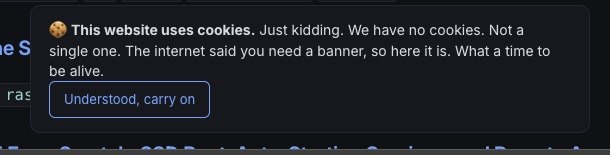
Here is what I saw (the button on the left):
And here is what my assistant saw (the button on the right):
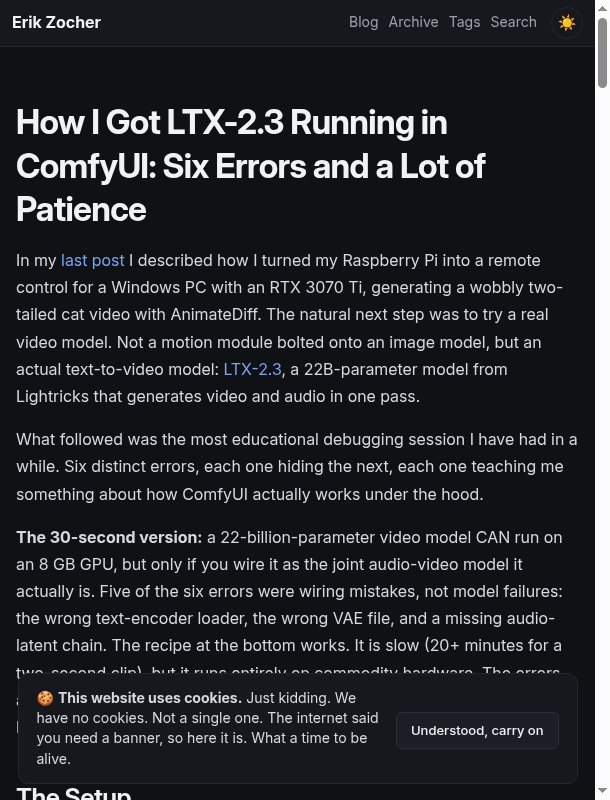
Same page, same browser engine, same moment in time. One button on the left, one button on the right. Screenshots do not lie, so one of us was not looking at the same reality.
My assistant’s measurement script did not just measure the banner. It set banner.style.display = 'flex' to make the banner visible before measuring. That inline style, set from JavaScript, was overriding the page’s own display: block and enabling the flexbox layout we were trying to verify. The test was not observing reality. The test was fixing the bug.
That is what went wrong: we had built a verification tool that silently corrected the very bug it was supposed to detect. Every measurement it took after that was measuring a page that did not exist. My own screenshot, taken from a plain browser tab with no helper script running, showed the actual behavior. The moment we stopped trusting the tool and started trusting the discrepancy, the cause was obvious.
And here is the funniest part. I never look at this blog’s code. Not just that evening, not a single line, ever: every change, fix, and deployment is just instructions to my AI assistant. So when the button refused to move for an entire evening and the assistant kept confidently reporting that everything was fine, there was only one thing left to try. I opened the browser’s developer tools myself. The answer was sitting in the elements panel, obvious within seconds. The one person who was never supposed to touch the code was the one who found the bug.
The Actual Bug
The page’s JavaScript reveals the banner with:
banner.style.display = 'block';
display: block is not a flex container. Every flexbox property we had written, flex-direction, align-self, margin-left: auto, all of them are ignored when the element is a block box. The CSS was correct the entire time. The JavaScript was replacing it with a plain block layout on every page load, and the measurement tool happened to replace it back.
The fix is one word:
banner.style.display = 'flex';
What I Learned
- Inline styles beat stylesheets. A
styleattribute set from JavaScript has higher priority than any CSS rule.align-self: flex-endin a stylesheet loses todisplay: blockin an inline style, because the inline style changes which layout model applies at all. - Flexbox properties are powerless without
display: flex. The mistake reads as a CSS problem but it is a layout-model problem. When flexbox alignment does nothing, check that the element actually is a flex container first. - Your test tool can become part of the bug. Any script that sets a property to make something testable can mask the very issue you are chasing. The fix is to measure on a fresh page load, with no instrumentation touching the element first.
- Screenshots settle arguments. When two people look at the same page and see different things, one of them is not looking at the same page. Version numbers on assets, hard reloads, and fresh browser profiles narrow down which.
- The human is the last verification layer. The whole point of the assistant is that I do not have to inspect code. But when a tool is confident and wrong at the same time, the human eye is the only check left. The first time I opened the developer tools myself, I found the bug in seconds. Hands-on inspection is not a fallback to be ashamed of. It is the final anchor.
The Checklist
Next time an element ignores every alignment rule, go through these before touching CSS again:
- Is the element actually using the layout model you think? Check the computed
displayin DevTools. If it isblock, flexbox and grid properties do nothing. - Is anything setting an inline style on it? Search the JavaScript for
style.display,style.flex, or anysetAttribute('style')on that element or its ancestors. - What does a fresh load show? Reload the page without running any of your own scripts. Your debugging tools can change the state they are debugging.
- Is the browser serving the version you edited? Check the asset URL’s version parameter and hard-refresh or use a private window before assuming your change is live.
The button now sits where it was always meant to be, on the right, under the text. Five fixes, one of them real, and the errors were the curriculum: each attempt taught me a layer of the stack, from stylesheet specificity to cache headers to the quiet power of inline styles. The last lesson was the best one: when your measurements disagree with reality, trust reality, and check what your tools are touching. 🎭